
 New on Google Play
McMuse Turn your photos into art
Pick a photo, pick a style, and McMuse paints the whole frame again from scratch. It is not a filter laid over the top: the picture is re-rendered, brushstroke by brushstroke, in the style you chose. 51 styles, from watercolour and oil to anime, comic and Chinese ink wash.
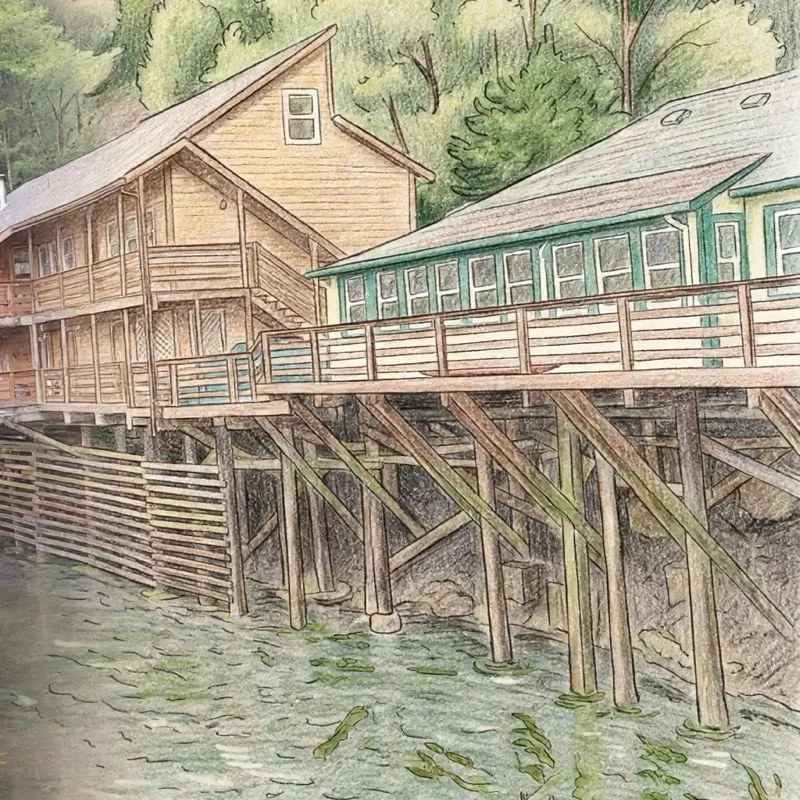
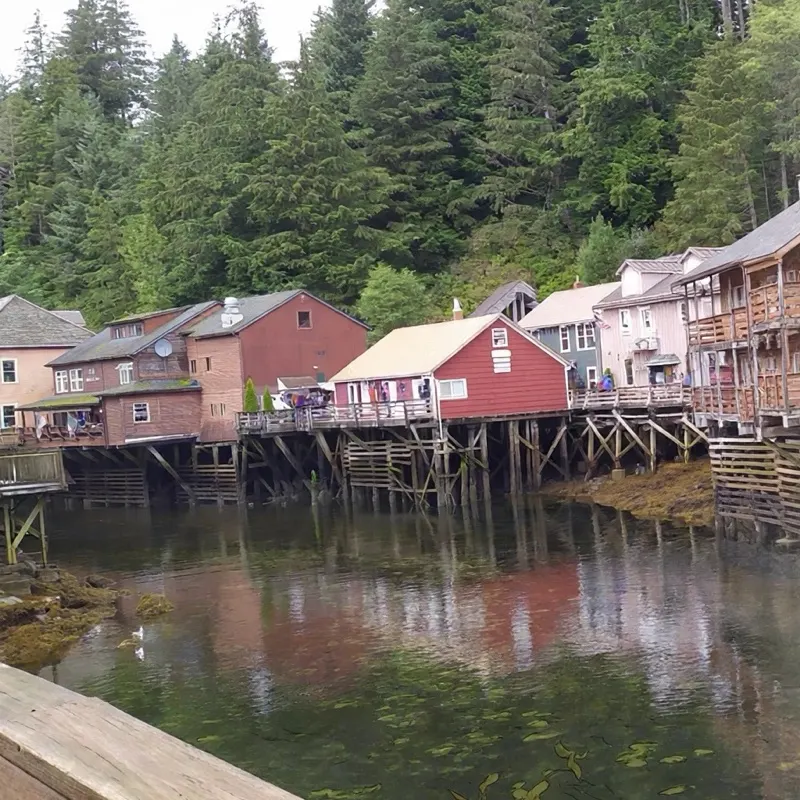 Your photo
Storybook
Sixteen art styles that repaint your photo.
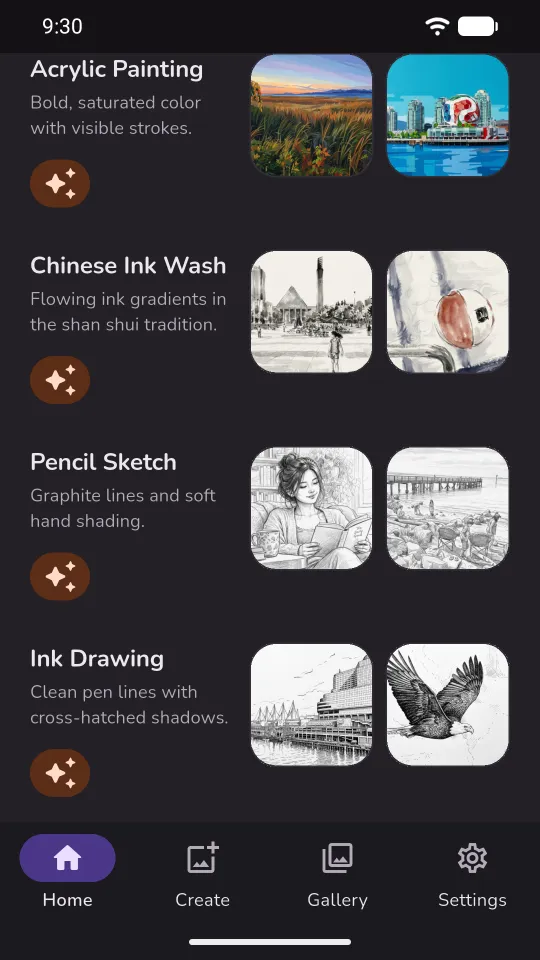
Every style comes with real example art, so you can see what it does before you spend anything on it.



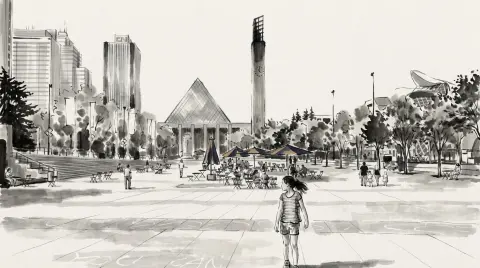




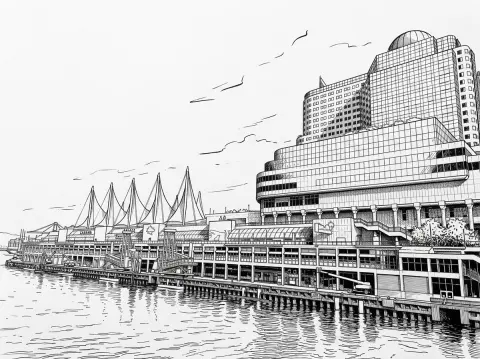
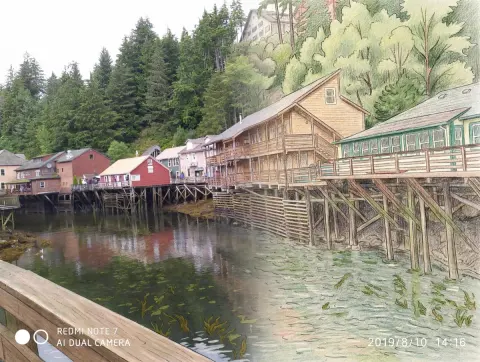



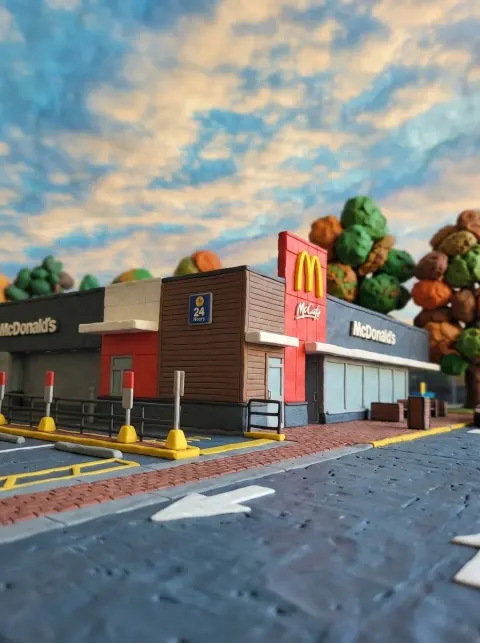
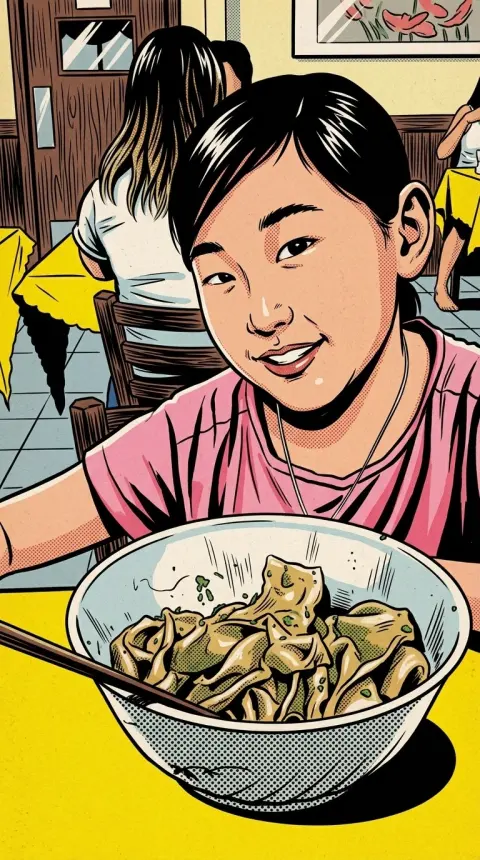

And thirty-five more that reimagine it.
These turn your photo into something else entirely. Seasonal styles also join the home screen for a few weeks at a time.
From photo to artwork in four taps.
Pick a photo
- On Home, tap Camera to take a new one or Photos to choose from your library.
- You can replace or remove it before you go on.
Pick your styles
- In Create, tick as many styles as you like.
- Tap a style's thumbnail to see its example and what it does.
- Or start from a style on Home: its button opens Create with that style already chosen.
Choose a size
- Pick 1K, 2K or 4K. That is 1, 2 or 4 credits per artwork.
- The bar at the bottom spells it out, for example 3 styles selected · 4K · 12 credits, before you press Create.
Save, share, try again
- McMuse works through the styles four at a time and shows one card per style.
- Each card has Save and Share.
- Try Another Style keeps the photo; Create Another starts fresh.
A look around the app.
Swipe through the screens. Light and dark themes both follow your phone.
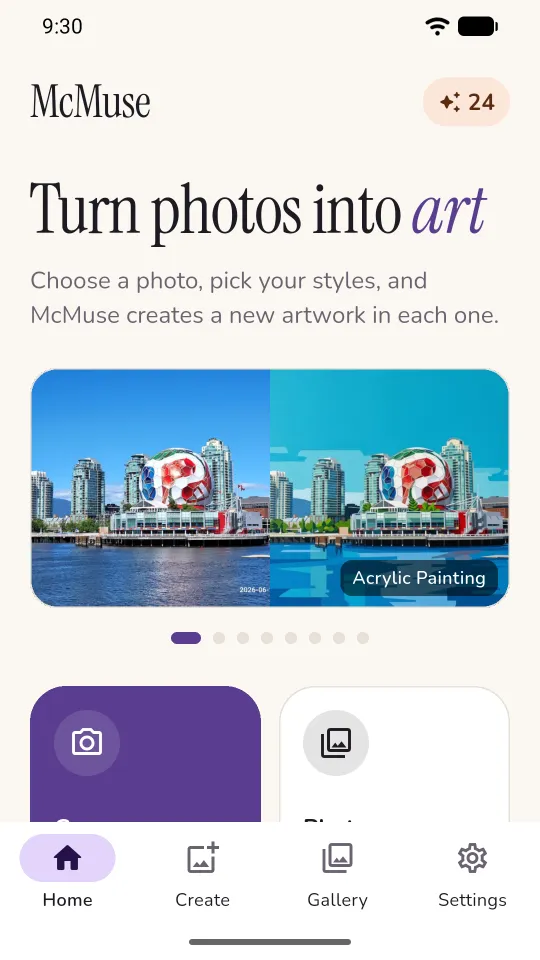
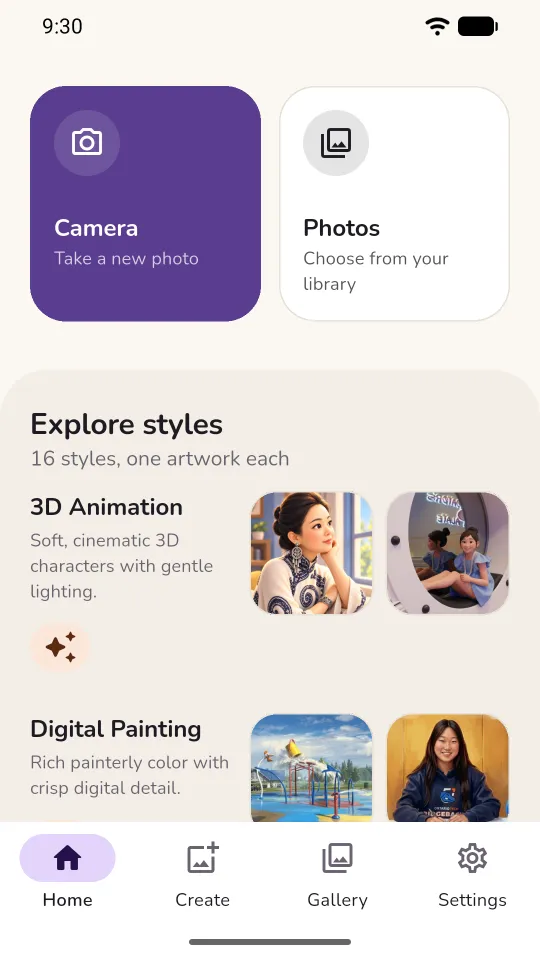
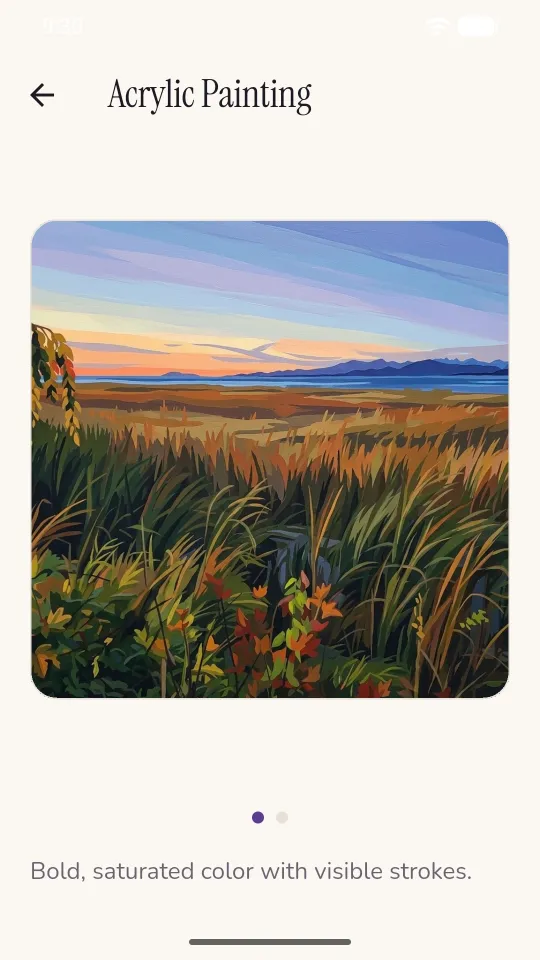
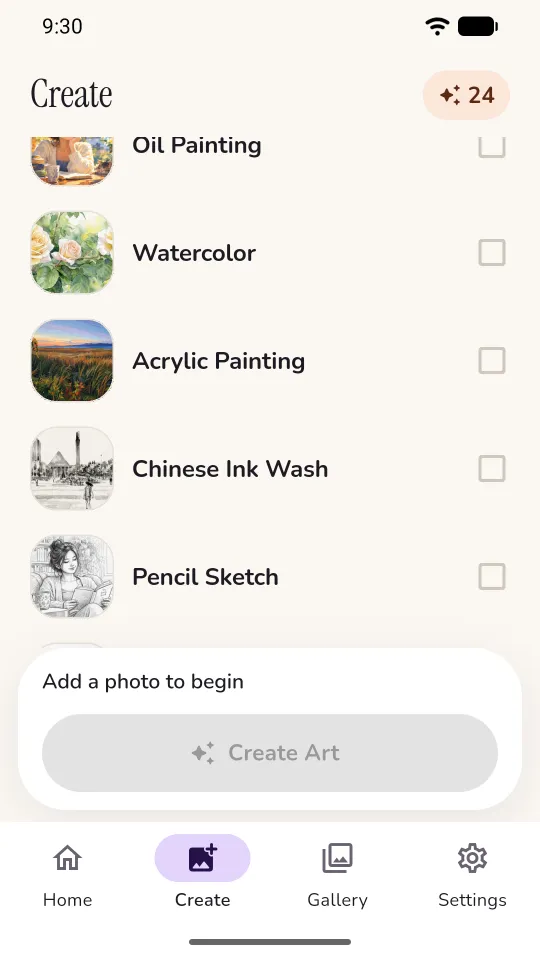
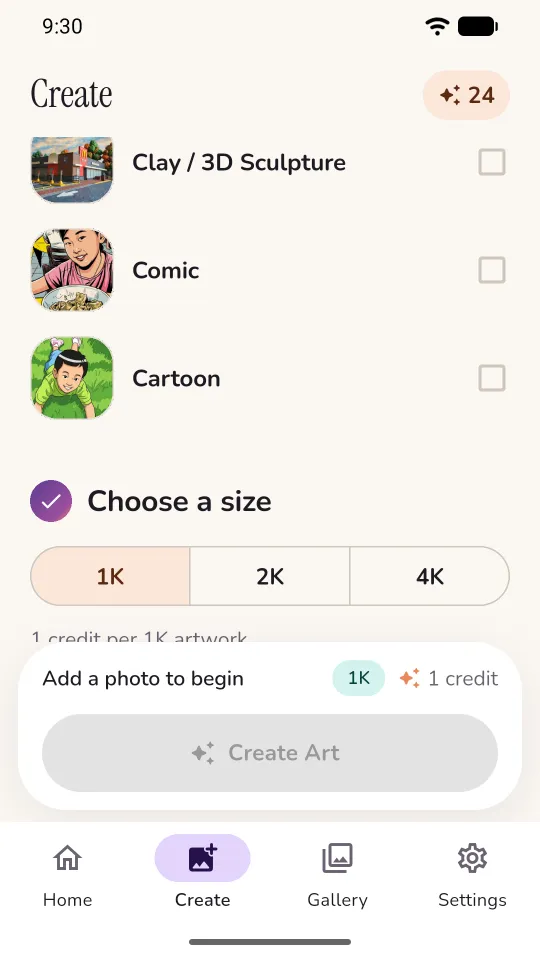
Everything you make stays on your phone.
Kept on the device between launches, not in an account in the cloud.
Filters that combine
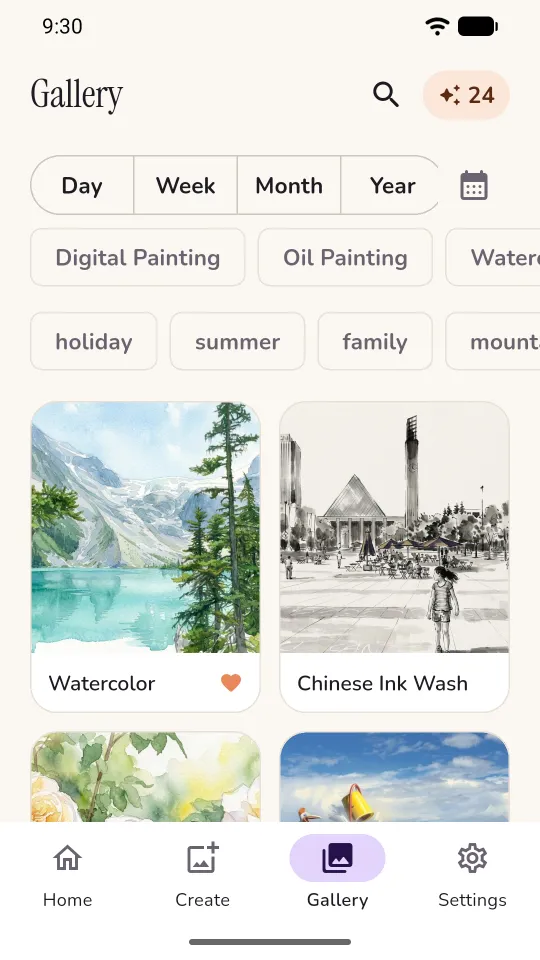
By style, by day, week, month or year, or by a calendar that only offers the days you made something. "Oil paintings from last week" is two taps.
Reusable tags
Tags you have typed before come back as chips, most-used first, narrowing as you type.
Safe favourites
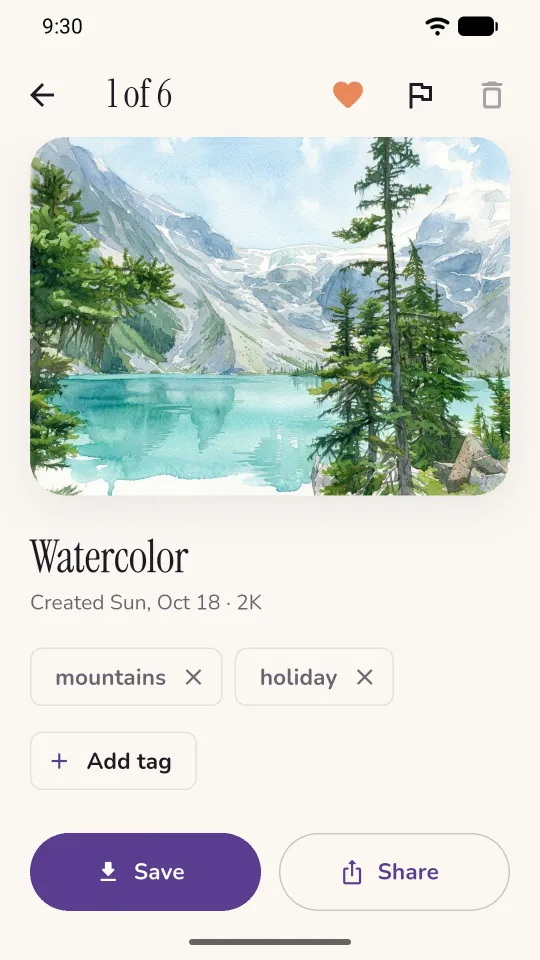
A favourite cannot be deleted by accident: unfavourite it first.
Look closely
Swipe between pieces, then pinch or double-tap to zoom into the brushwork.
Clear about where your photo goes.
McMuse asks before your first artwork and names Google's Gemini as the service that does the rendering. Nothing is sent until you agree.
Location and every other EXIF tag are stripped from the photo before it leaves the device.
McMuse does not keep your photo or the artwork on a server. The artwork comes straight back to your phone.
You do not need an account. Signing in with Google is optional, and only lets your credits follow you to a new phone.
Google's safety filters screen photos and results. If one is refused, no credits are spent, and anything the AI makes can be reported from inside the app.
Read the full McMuse privacy policy and terms, or see how to delete your account and data.
Common questions
What is the difference between the art styles and the 35 more styles?
The 16 art styles repaint your photo in a medium, such as oil, watercolour, pencil or Chinese ink wash. The 35 more styles reimagine it as something else, such as a pin collection, a brick build, a film strip or an Ukiyo-e woodblock print.
Can I make several styles from one photo?
Yes. Tick as many of the 16 art styles as you like for the same photo. McMuse works through them four at a time and shows one card per style, so you can compare them side by side.
What sizes can McMuse make?
1K, 2K or 4K, chosen before you start. An artwork uses 1 credit at 1K, 2 at 2K and 4 at 4K, and the total is written on the button before you press it. The size is recorded on the finished piece.
Do I need an account?
No. Signing in with Google is optional and only lets your credits follow you to a new phone.
What happens to my photo?
McMuse asks before the first artwork and names Google's Gemini as the service that renders it. Location and every other EXIF tag are stripped before the photo leaves the device, and neither the photo nor the artwork is kept on a server: the artwork comes straight back to your phone.
Where are my artworks kept?
In the gallery on your phone, not in a cloud account. You can filter it by style, by day, week, month or year, and by tag, and save or share any artwork.
Which languages does McMuse support?
English, Simplified Chinese and Traditional Chinese. It follows your device, or you can choose in Settings.
Your photos, repainted.
McMuse is on Google Play for Android phones.

 McChinese
 McCantonese
 McEnglish
 Great Cantonese Dictionary
 Xie Zi
 QuickOne Scanner
 Momera GO